ERP Tutorial 14 — BOM Builder: Authoring Product Structures
Tutorial 7 introduced the Bill of Materials as something to read — a tree of components exploding into a cost. This tutorial covers the tool that lets that tree be written: the BOM Builder, under ERP → Manufacturing, beside the BOM page it feeds. It is the portal's first write path into BOM data, and it is guarded accordingly.
Editing an Existing Structure
Selecting a BOM loads its lines into an editable grid. Component, quantity per unit, and UOM are all editable; unit and extended cost are pulled live from the Item Master — the same derivation the read-only BOM page uses — and the total recalculates as values change.
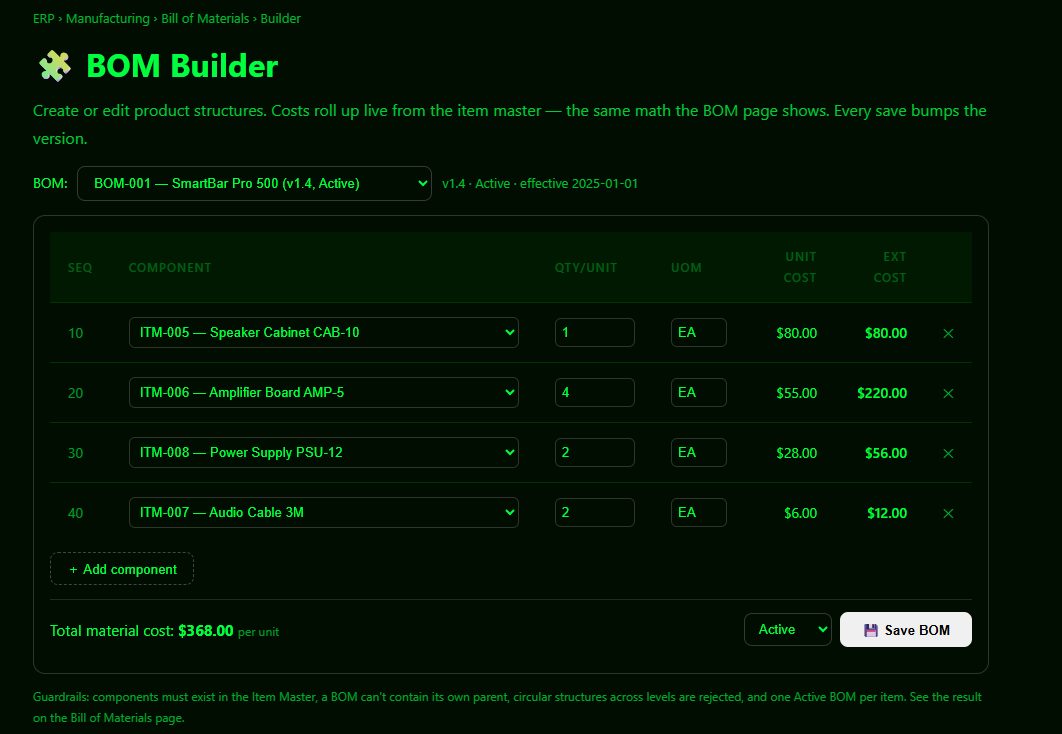
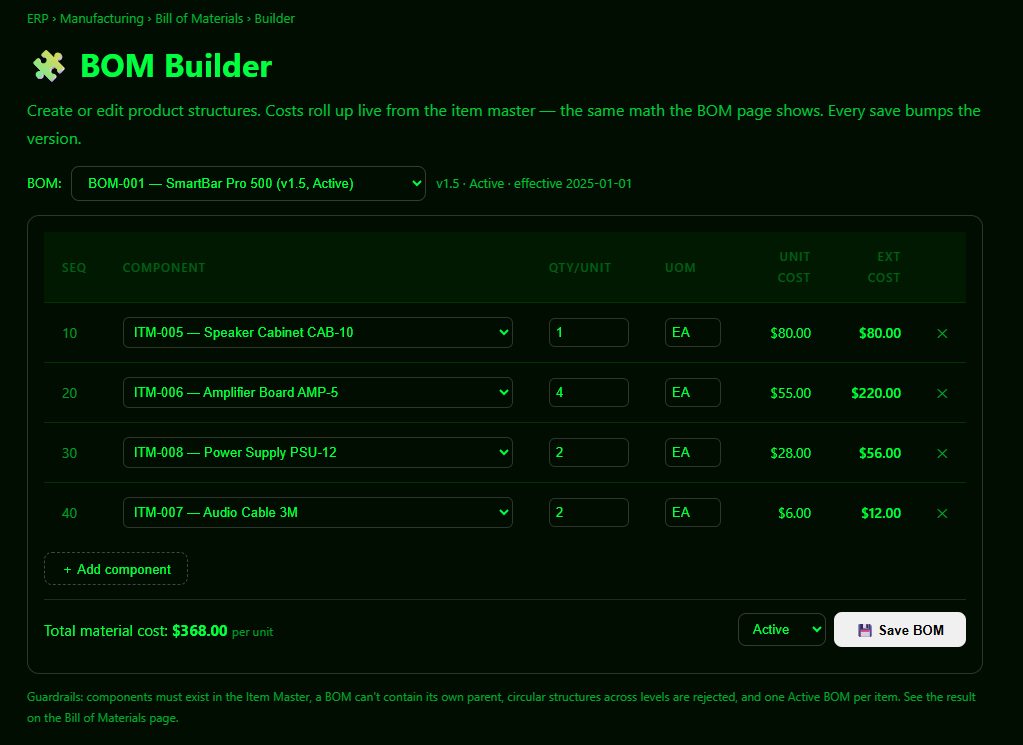
Every save bumps the version automatically. Editing quantities and saving moves BOM-001 from v1.4 to v1.5 — a visible audit trail of structural change, with the effective date preserved.
The Guardrails
A BOM tool that accepts anything is dangerous — a bad structure corrupts every cost roll-up and MRP explosion downstream. The Builder enforces several rules at save time. The simplest: a BOM cannot contain its own parent item.
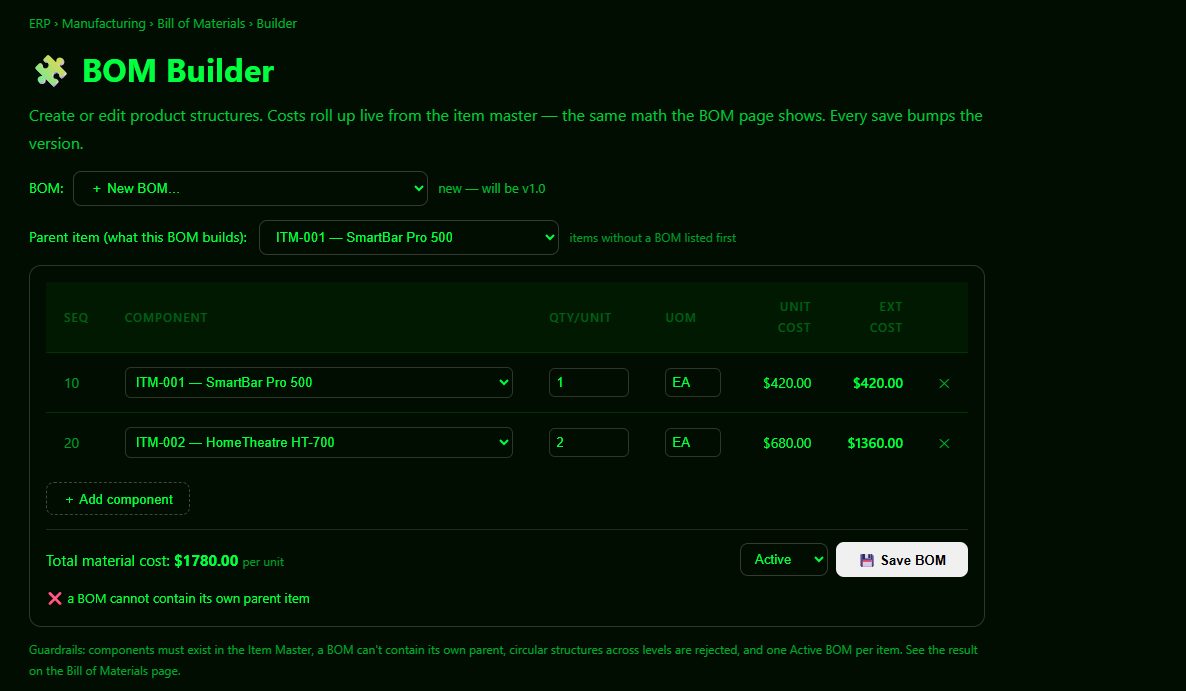
The full guardrail set: components must exist in the Item Master; a BOM cannot contain its own parent; circular structures across levels are rejected (if component A's own BOM already contains parent B, adding A to B's BOM would create an infinite explosion — the Builder walks the tree and refuses); quantities must be positive; a component cannot appear twice in one BOM; and only one Active BOM is allowed per item (additional versions can be saved as Draft). When an Active BOM is saved, the parent item's bom_id reference in the Item Master is kept in sync automatically.
Where It Fits
The Builder closes a loop in the series. Tutorial 7 reads BOMs; Tutorial 4's MRP explodes them; Tutorial 6's work orders consume them. Now they can be authored and revised in place, versioned, and validated — so the structures every plan depends on are no longer fixed fixtures but maintainable master data. Changes made here appear immediately on the Bill of Materials page and flow into the next MRP run and work order.
Try It
- Open ERP → BOM Builder, select a BOM, and change a component quantity — watch the total and version respond.
- Try to break it: add a component that equals the parent, or duplicate a line, and read the guardrail message.
- Create a fresh BOM for an item that has none (the parent dropdown lists those first), then confirm it on the Bill of Materials page.
Next: Tutorial 15 — MRP in Action, where these structures get exploded across an eight-week horizon.
Comments (0)